How to Set Up a Team Email Signature in Outlook
Your company sends thousands of emails a week. How many of them have a consistent, on-brand signature?
If the honest answer is “I’m not sure” — you’re not alone. Managing team email signatures in Outlook is one of those problems that feels solved until you look closely. Each person sets their own. Some include a logo, some don’t. A few still have the old phone number. The result: your company is presenting dozens of different faces to clients, prospects, and partners — every single day.
Here’s how to get your team’s Outlook signatures under control.
Why Outlook Signature Management Is Harder Than It Looks
Outlook gives every user the ability to create their own email signature. That sounds convenient. In practice, it creates chaos.
The core problem is that there’s no native way to push a standardized signature to your entire team in standard Outlook. Microsoft 365’s mail flow rules can append text to outgoing messages, but they function more like disclaimers than proper signatures — limited design, no HTML formatting, no images. Trying to build a polished, branded signature this way is like trying to paint a room with a toothbrush.
The result? Every employee ends up with something slightly different:
- Different fonts and colors
- Inconsistent phone number formats (+1 vs. 1- vs. nothing)
- Missing or outdated logos
- No CTA or a CTA linking to last year’s campaign
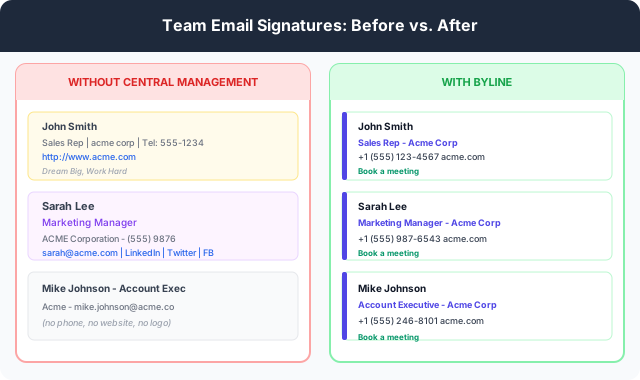
This isn’t just an aesthetic problem. Inconsistency looks unprofessional. It erodes brand trust — especially when new clients are evaluating your company through every touchpoint, including a cold reply.
How to Set Up an Outlook Signature (For Individuals)
If you’re setting up a signature just for yourself, Outlook makes it reasonably straightforward:
- Open Outlook (desktop app or Outlook on the web)
- Go to Settings → View all Outlook settings
- Select Mail → Compose and reply
- Under Email signature, build your signature in the editor
- Choose whether to apply it automatically to new messages and/or replies
The editor supports basic formatting — bold, links, images. For a simple text-based signature, this works fine. For anything more polished (a logo beside your name, a CTA button, a banner), you’ll need to paste in custom HTML — which Outlook often mangles unpredictably.
What a Good Team Signature Looks Like
Before worrying about the tool, it helps to know what you’re aiming for. A strong team email signature has five elements:
- Employee name and title — personalized per person, obviously
- Company name and logo — consistent across everyone
- Contact details — phone, website, formatted the same way for everyone
- Brand colors — matches your website and other marketing materials
- A CTA — one clear action: book a call, visit a landing page, read a case study
The best team signatures are modular: the logo, color palette, and CTA are locked in. Only the personal details (name, title, phone) change per employee. This gives every team member a signature that feels personal but stays on-brand.
The Real Problem: Change Management at Scale
Even if you get every employee set up properly today, you’ll face this problem: signatures go stale.
Someone gets promoted. Your website URL changes. You launch a new campaign and want to swap the CTA. Your logo gets updated after a rebrand.
In native Outlook, updating signatures across a team of 20 means asking 20 people to update their own settings — and hoping they all do it, correctly, before the next important email goes out. In a team of 100, that’s a project, not a task.
This is where centralized signature management becomes genuinely valuable. Instead of pushing changes to people, you push them to a template — and everyone’s signature updates automatically.
A Better Approach: Manage Signatures From One Place
Tools built specifically for email signature management solve the core Outlook limitation. You design the signature once, control which fields employees can customize, and update the whole company from a single dashboard.
Byline is built exactly for this. You can:
- Choose from professionally designed templates (no design skills needed)
- Lock your logo, colors, and CTA across every signature
- Give team members control over their own name, title, and photo
- Update your company’s CTA or banner in one place — and every signature reflects it immediately
- Track clicks on any link in your signatures with built-in analytics
Whether your team uses Outlook, Gmail, or a mix of both, Byline handles the signature — not the email client.
Stop Trusting Your Team to Manage Their Own Signatures
The ask — “please update your email signature” — is deceptively simple. In practice, it rarely gets done consistently, quickly, or correctly. Centralizing signature management isn’t about micromanaging; it’s about making sure your brand shows up the same way in every email, without anyone having to think about it.
Your team’s email signatures are a marketing channel. Treat them like one.
Ready to get your whole team on-brand? Create a free account and set up your first team signature in minutes.
George Khairallah
Founder of Byline
George helps professionals and teams build branded email signatures that make every email count. He founded Byline to bring enterprise-grade signature management to individuals and small teams at a price that makes sense.